How to Build Room-Level Presence Detection with ESPresense
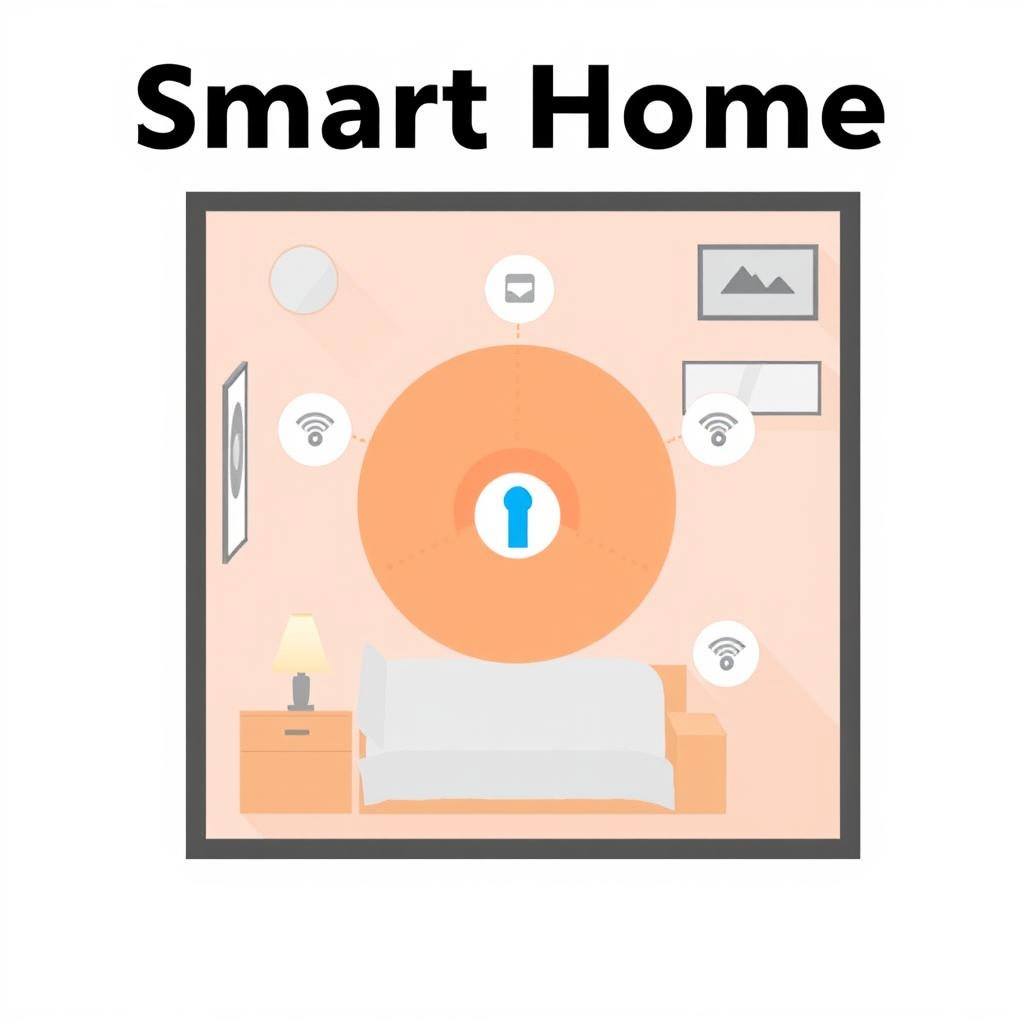
Motion sensors are great for detecting movement, but they can’t tell you who is in a room — and they go silent the moment you sit still. If you want automations like “turn on the office lights when I walk in” or “pause the TV when you leave the living room” without false triggers, you need actual presence detection.
ESPresense is an open-source ESP32 firmware that turns $5 ESP32 boards into BLE presence detectors. Each node scans for Bluetooth devices — phones, smartwatches, BLE tags — measures signal strength, and publishes the estimated distance over MQTT. With one ESP32 per room, Home Assistant can tell exactly which room a tracked device is in.
TL;DR — What You’ll Build:
- One ESPresense node per room that detects BLE devices by fingerprint or MAC address
- MQTT-based room presence reporting into Home Assistant via the
mqtt_roomintegration - Distance filtering and calibration for reliable room transitions
- Automations like “arrival lights” and “away mode” that trigger by room, not just by home
This guide uses the mqtt_room approach — one node per room, simple setup, no floor plan required. The ESPresense docs recommend this as the starting point: “Start here if you’re new.”
What You’ll Need
| Item | Cost | Notes |
|---|---|---|
| ESP32 board (per room) | $3–8 | ESP32-WROOM, ESP32-C3, or ESP32-S3 |
| USB power cable | $1 | Micro USB or USB-C |
| MQTT broker | Free | Mosquitto running locally or in Home Assistant add-on |
| Home Assistant instance | — | With Mosquitto broker add-on |
| A phone, watch, or BLE tag | — | The device you want to track |
Board recommendations: The ESPresense docs support ESP32-WROOM, ESP32-C3 SuperMini, ESP32-S3, and M5Stack devices (M5Atom, M5StickC Plus). For a basic bedroom or office, any ESP32 with WiFi works. The ESP32-S3 has more RAM and can track up to 200 fingerprints instead of the default 100 (per the GitHub configuration docs).
Flashing ESPresense on Your ESP32
The fastest way to get started is the ESPresense web flasher — no IDE required.
Step 1: Go to espresense.com and click Install (or browse to the ESPresense web installer).
Step 2: Connect your ESP32 to your computer via USB. Click Connect in the web flasher, select the correct serial port, and choose your board type.
Step 3: Once flashing completes, the ESP32 reboots and creates a WiFi access point called ESPresense-XXXXXX. Join it with your phone or laptop.
Step 4: A captive portal opens. Enter:
- WiFi SSID and password for your home network
- MQTT broker host (e.g.,
192.168.1.100orcore-mosquittoin Home Assistant) - MQTT port (default
1883) - Room name — this becomes the node’s identity (e.g.,
living_room,office,kitchen)
The ESP32 reboots onto your network and starts scanning. You can confirm by checking the MQTT topic espresense/rooms/<room_name>/status — it should publish online.
This portal is accessible anytime from the device’s web UI. Just navigate to its IP address in a browser.
Finding Your Device’s Fingerprint
ESPresense doesn’t rely on MAC addresses alone. It uses fingerprints — stable identifiers derived from the BLE advertisement data — so it can track devices even when they use random MAC addresses (as iPhones and Android phones do).
To find your phone’s fingerprint, connect the ESP32 to your computer via USB and monitor serial output at 115200 baud:
# Using PlatformIO CLI, or any serial monitor
pio run --target monitor
# Alternative: screen, minicom, or Arduino IDE serial monitor
Bring your phone close to the ESP32 (within 2–3 feet) and watch for output like:
0 New   | MAC: 67dc0c979510, ID: apple:0c0e:26
0 New   | MAC: 14dc290e58f2, ID: apple:0a01:5
1 Close | MAC: 4277f2521053, ID: apple:1007:11-12
The line labeled Close means the device is within 0.5 meters. The ID field (apple:1007:11-12) is the fingerprint you’ll use in your Home Assistant configuration. For Android phones, the ID typically starts with android: followed by model information.
Alternatively, use MQTT Explorer (available at mqtt-explorer.com) and subscribe to espresense/# to see all discovered devices grouped by room.
For Apple devices with rotating MAC addresses, ESPresense supports IRK enrollment — you can provide the device’s Identity Resolving Key so the node recognizes it through address rotation. See the Apple devices guide for details.
Configuring Home Assistant for Room Presence
Once your ESPresense nodes are publishing data to MQTT, you need to configure Home Assistant to consume it. ESPresense uses the MQTT Room Presence integration, with automatic MQTT discovery enabled by default — each node publishes discovery payloads on connect (as documented in the ESPresense network config docs).
Add each tracked device to your configuration.yaml:
sensor:
  - platform: mqtt_room
    device_id: "apple:1007:11-12"
    name: "My iPhone"
    state_topic: "espresense/devices/apple:1007:11-12"
    timeout: 10
    away_timeout: 120

  - platform: mqtt_room
    device_id: "iBeacon:xxxxxxxx-xxxx-xxxx-xxxx-xxxxxxxxxxxx-3-58241"
    name: "Tile Keychain"
    state_topic: "espresense/devices/iBeacon:xxxxxxxx-xxxx-xxxx-xxxx-xxxxxxxxxxxx-3-58241"
    timeout: 10
    away_timeout: 120
Key configuration details from the Home Assistant docs:
| Parameter | Purpose |
|---|---|
device_id |
Must match the fingerprint ID ESPresense broadcasts |
timeout (seconds) |
How long before a room update is considered stale; defaults to 5 |
away_timeout (seconds) |
Time with no updates before the sensor switches to not_home; 0 disables |
After restarting Home Assistant, you’ll see a sensor per device that reports the room name as its state. The sensor attributes include distance, name, and id.
Pro tip: Start with away_timeout: 0 while testing. Once you’re confident the detection works, set it to 120–300 seconds so the system doesn’t flip back and forth when someone steps out briefly.
Tuning Filtering and Calibration
Out of the box, ESPresense uses default distance calculations that may or may not match your environment. You can tune three key parameters from each node’s Settings page (or over MQTT via espresense/rooms/<room>/<setting>/set):
RSSI at 1 Meter (ref_rssi)
Default: -65. This is the expected signal strength from a 0 dBm transmitter at exactly 1 meter. Different phones and tags have different broadcast power. These defaults and their ranges are defined in the ESPresense settings documentation. To calibrate:
- Place your phone 1 meter from an ESPresense node
- Check the Settings page for the current average RSSI reading
- Enter that value as
ref_rssi
This is the single most impactful calibration step. The ESPresense calibration guide notes that iBeacons and Eddystone beacons broadcast their own calibrated RSSI at 1m, so the ref_rssi setting is only used for non-beacon devices (phones, wearables, generic BLE).
Absorption Factor (absorption)
Default: 2.7. This accounts for signal attenuation through walls and obstacles. Higher values produce larger distance estimates for the same RSSI. The ESPresense calibration guide provides these typical values:
| Environment | Absorption Factor |
|---|---|
| Open air, no walls | 2.0 |
| Drywall, residential interior | 2.5–3.0 |
| Brick, dense furniture | 3.0–3.5 |
| Dense concrete / multi-room | 3.5+ |
Rx Adj RSSI (rx_adj_rssi)
Default: 0. Each ESP32 board has slightly different radio characteristics. When you have multiple nodes, calibrate them so a phone at the same distance reports the same RSSI on every node. The ESPresense calibration guide recommends picking one reference node (leave at 0), then adjusting others so they match.
To tune these from MQTT (no web UI needed):
mosquitto_pub -h 192.168.1.100 -t "espresense/rooms/living_room/absorption/set" -m "2.8"
mosquitto_pub -h 192.168.1.100 -t "espresense/rooms/living_room/ref_rssi/set" -m "-67"
Settings are retained across reboots.
Building Automations with Room Presence
Once your devices report room states, the automation possibilities open up. Here are three practical examples:
Example 1: Room-Based Arrival Lights
alias: "Office lights on arrival"
triggers:
  - trigger: state
    entity_id: sensor.my_iphone
    to: "office"
actions:
  - action: light.turn_on
    target:
      area_id: office
Example 2: Away Mode Manager
Track when no devices are detected in any room:
alias: "House goes into away mode"
triggers:
  - trigger: state
    entity_id: sensor.my_iphone
    to: "not_home"
  - trigger: state
    entity_id: sensor.wifes_iphone
    to: "not_home"
condition:
  - condition: state
    entity_id: sensor.my_iphone
    state: "not_home"
  - condition: state
    entity_id: sensor.wifes_iphone
    state: "not_home"
actions:
  - action: scene.turn_on
    target:
      entity_id: scene.away_mode
Example 3: Device In-Range Confidence with Distance
Use the distance attribute to add hysteresis — don’t declare someone in a room until they’re close enough:
trigger:
  - trigger: state
    entity_id: sensor.my_iphone
condition: "{{ state_attr('sensor.my_iphone', 'distance') | float < 3.0 }}"
This prevents false transitions when a device is two rooms away but gets picked up by the wrong node at the edge of its range.
Troubleshooting
| Symptom | Likely Cause | Fix |
|---|---|---|
| Device is detected by wrong room | Absorption factor too low, or nodes too close | Increase absorption, or space nodes 30+ feet apart |
| Sensor shows “unavailable” in HA | device_id doesn’t match the fingerprint |
Check serial monitor output for the exact ID |
| Node online but no devices found | Active scanning disabled, or signal too weak | Verify send to devices topic is enabled in node settings |
| Distance jumps 5–10m randomly | 2.4 GHz interference or antenna placement | Move node away from metal, routers, and microwaves |
| Apple device not detected after address rotation | IRK not enrolled | Follow the Apple guide for IRK capture |
| Multiple nodes detect same device at once | Normal — HA picks the closest via mqtt_room timeout |
Adjust timeout to favor faster transition |
Going Further
With ESPresense’s Companion approach, you can deploy 5–8 nodes per floor for X,Y coordinate positioning on a floor plan — useful for finding devices visually or triggering actions based on precise location. That setup requires more nodes and a floor plan, but the same ESP32 hardware works for both modes.
For better Apple device tracking, ESPresense supports active IRK discovery — the node establishes a BLE connection to capture the Identity Resolving Key, which lets it recognize the device through address rotation. This is documented in the Apple device guide.
The ESPresense project is actively maintained with firmware v4.0.6 as the latest stable release, supporting NimBLE 2.x for ESP32-C6 and S3 boards as noted in the GitHub changelog. The full documentation is available at espresense.com.
Related: Pair ESPresense room detection with ESP32 Bluetooth proxies for comprehensive BLE coverage that handles both sensors and presence.
📖 Related Reads
- NoCode Insider — AI workflow automation with no-code tools, agents, and APIs
- ToolBrain — tool reviews, LLM comparisons, and AI workflow guides
Cross-links automatically generated from SmartHome Field Guide.
← Back to guides