Complete Guide to Home Energy Monitoring with Home Assistant (2026)
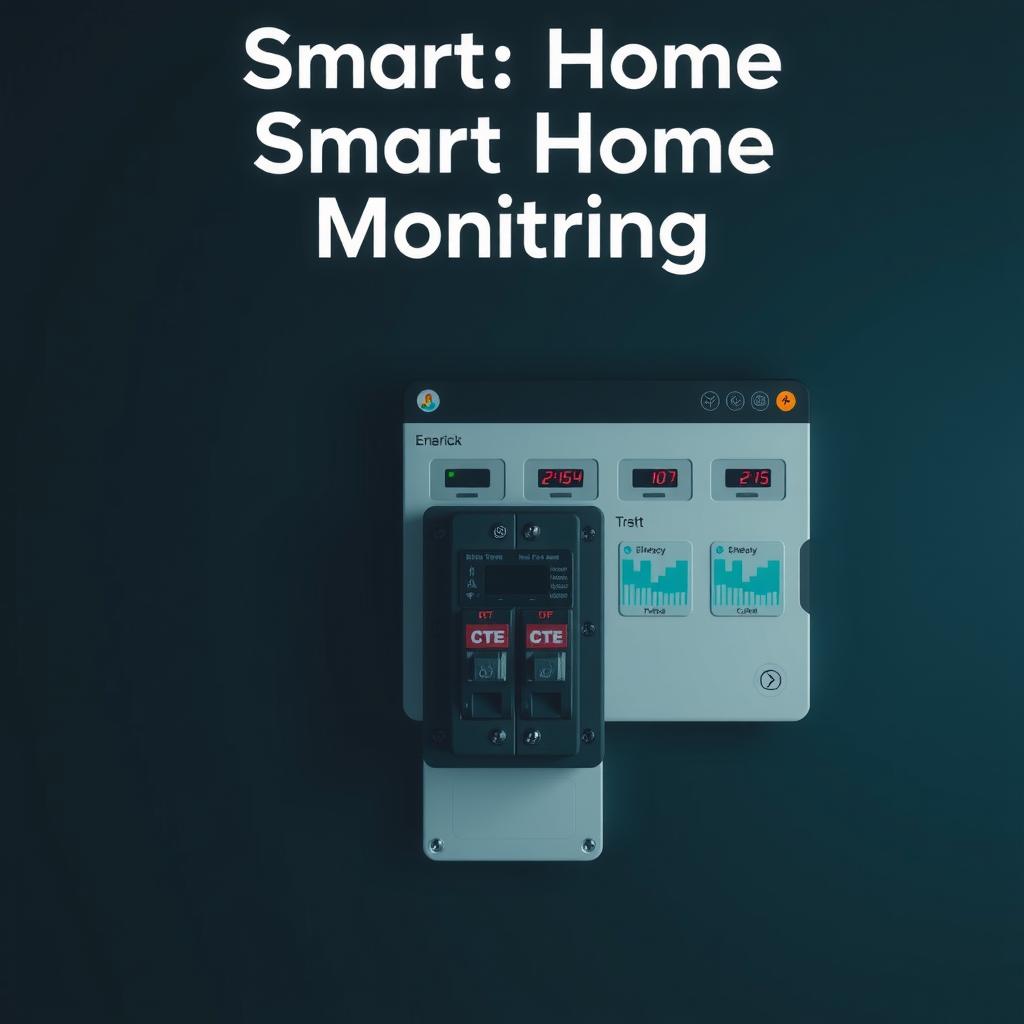
Summer energy bills hit hardest when you can’t see where the power’s going. A whole-home energy monitor connected to Home Assistant changes that — you get real-time circuit-level data, historical trends, and automations that actually cut consumption.
This guide walks through picking the right hardware, installing it safely, getting data into Home Assistant (with the cloud vs. local tradeoff spelled out), and building a dashboard that pays for itself.
What You’ll Need
| Item | Cost | Notes |
|---|---|---|
| Emporia Vue 3 (16-circuit) | $200 | Best bang-for-buck, 16 branch sensors [1] |
| Voltage snubber (if no 240V dryer) | $10 | Needed for single-phase with no 240V load [2] |
| Screwdriver (small flathead) | — | For breaker panel terminals |
| Flashlight or headlamp | — | Breaker panels are always in dark corners |
| Home Assistant instance | — | With ESPHome add-on for local flash route |
Alternatives if Emporia isn’t your fit:
- IoTaWatt: $250–300, open-hardware, fully local out of the box, no cloud dependency [3]
- Shelly EM: $60 per phase, 120A max, good for mains-only monitoring [4]
- Sense: $299, uses machine learning for device detection but cloud-dependent [5]
- DIY ESP32 + CT Clamps: $20–30, full control, requires soldering and calibration [6]
For most people, Emporia Vue 3 hits the sweet spot on price, accuracy, and the option to flash it for local-only operation.
Step 1: Install the Hardware
Safety first. You’re working inside your breaker panel. If you’re unsure, hire an electrician. Even with the main breaker off, the service entrance wires (coming from the meter) stay live.
- Kill main breaker. Verify with a non-contact voltage tester.
- Mount the Vue. It sits inside the panel — double-sided tape works.
- Connect the two 200A CTs. These clamp around your main feed wires (L1 and L2). They spring open; snap them around each main conductor. The arrow on the CT must point toward the load (away from the breaker).
- Snap branch CTs. Each of the 16 smaller CTs goes around an individual circuit breaker wire. Same arrow rule.
- Wire the voltage reference. The Vue needs to sense voltage to calculate wattage. Connect the two blue wires to the L1 and L2 breaker terminals (or a double-pole 240V breaker). The white wire connects to the neutral bar.
- Power it up. Close the panel, flip the main breaker back on. The Vue’s LED should light green.
Step 2: Cloud vs. Local — The Critical Choice
Emporia’s cloud integration works fine and is the easiest path. The company’s first-party API is reliable, and the Home Assistant integration pulls data over WiFi through Emporia’s servers [7].
The downside is obvious: if Emporia’s cloud goes down, you lose access to your data. The company doesn’t charge a subscription today, but that could change. There’s also the inherent latency — cloud polling adds 5–30 second delays depending on your internet [7].
For local-only operation, flash the Vue 3 with ESPHome firmware [8]. The process:
- Open the Vue 3 case (four Phillips screws)
- Connect a USB-to-serial adapter to the ESP32’s test pads (RX, TX, GND, 3.3V)
- Flash using the ESPHome web installer with the emporia-vue-local firmware
- Configure WiFi credentials via the device’s setup portal
- The Vue now publishes sensor data over MQTT locally — no cloud involved
The ESPHome route gives you sub-second updates, no internet dependency, and full data ownership. The tradeoff is the flashing process takes about 30 minutes and requires a cheap USB adapter [8].
Take the cloud route if: you want plug-and-play and don’t mind your energy data living on someone else’s server. Take the local route if: you value privacy, want real-time data, or plan to build automations around minute-to-minute changes.
Step 3: Integrate with Home Assistant
Cloud Route
From Home Assistant, go to Settings → Devices & Services → Add Integration → Search “Emporia Vue.” Enter your Emporia account credentials. The integration discovers all your sensors automatically — mains, individual circuits, and any Vue 3 you have installed.
Local (ESPHome) Route
If you flashed with ESPHome, the device shows up automatically in Home Assistant’s ESPHome integration. Navigate to Settings → Devices & Services → ESPHome → Configure. Each CT clamp becomes its own sensor entity.
Entity naming tip: ESPHome flahes the entity ID from the circuit name you configure in the firmware YAML. Name your circuits before flashing (e.g. kitchen_receptacles, hvac, water_heater) so they arrive in Home Assistant with readable names.
Step 4: Build the Energy Dashboard
Home Assistant’s built-in Energy dashboard is surprisingly capable. Go to Settings → Energy and configure:
- Grid consumption — select your mains sensor
- Individual device tracking — toggle on any circuit you want to track separately
- Cost per kWh — enter your utility rate (find it on your bill)
- Currency — set to USD (or your local currency)
Home Assistant calculates daily, weekly, and monthly costs automatically. The dashboard breaks down consumption by circuit and shows your peak usage windows.
For a more detailed view, add the energy entities to a custom dashboard using Mushroom cards:
type: custom:mushroom-chips-card
chips:
  - type: entity
    entity: sensor.emporia_vue_mains_power
    icon: flash
    name: Total
  - type: entity
    entity: sensor.emporia_vue_hvac_power
    icon: power
    name: HVAC
  - type: entity
    entity: sensor.emporia_vue_water_heater_power
    icon: water
    name: Water Heater
Step 5: Build Automations That Save Money
Raw data doesn’t cut bills. Automations do. Here are three that actually work:
Off-peak water heating. If you’re on time-of-use rates, turn on the water heater during off-peak hours and off during peak. In Home Assistant:
alias: Water Heater Off-Peak Schedule
trigger:
  - platform: time
    at: "23:00:00"
action:
  - service: switch.turn_on
    target:
      entity_id: switch.water_heater
HVAC cycling alert. If the HVAC runs continuously for over 90 minutes, something’s wrong (open window, failed damper, dirty filter). Send a notification:
alias: HVAC Overrun Alert
trigger:
  - platform: numeric_state
    entity_id: sensor.emporia_vue_hvac_power
    above: 2000
    for:
      minutes: 90
action:
  - service: notify.mobile_app
    data:
      message: "HVAC has been running for over 90 minutes — check for issues"
Standby vampire hunting. Monitor circuits that should pull near zero when devices are off. If a “lights” circuit draws over 50W at 2 AM, that’s a problem worth investigating [7].
Troubleshooting
| Symptom | Likely Cause | Fix |
|---|---|---|
| CT reports 0W | CT installed backwards | Flip the CT clamp (arrow toward load) |
| Erratic readings | Loose CT connection | Reseat the CT on the wire |
| Vue not found in Home Assistant | WiFi credentials wrong | Re-flash with correct WiFi config |
| Voltage reading jumps | Voltage reference wire not seated | Check connection at breaker terminal |
| Mains reading ≠ sum of circuits | Missing circuit CT or cross-panel circuit | Review which breakers feed which areas |
Verdict
Whole-home energy monitoring with Home Assistant is one of the highest-ROI smart home projects you can do. The Emporia Vue 3 at $200 gives you circuit-level granularity for less than the cost of one summer’s AC bill [1]. The cloud integration takes 15 minutes to set up. The local ESPHome flash takes a bit longer but gives you full data ownership [8].
Do the cloud route first. If you outgrow it, re-flash for local control later — the hardware is the same either way.
Sources: [1] Emporia Vue 3 product page — https://shop.emporiaenergy.com/products/emporia-vue-3 [2] Emporia Vue voltage snubber requirement — https://support.emporiaenergy.com/hc/en-us/articles/1500007183562 [3] IoTaWatt official site — https://iotawatt.com/ [4] Shelly EM product page — https://www.shelly.com/en/products/shop/shelly-em [5] Sense energy monitor — https://sense.com/product/ [6] ESPHome CT Clamp sensor docs — https://esphome.io/components/sensor/ct_clamp/ [7] Home Assistant Emporia Vue integration docs — https://www.home-assistant.io/integrations/emporia_vue/ [8] Emporia Vue local ESPHome firmware — https://github.com/emporia-vue-local/esphome [9] Home Assistant Energy dashboard docs — https://www.home-assistant.io/docs/energy/
📖 Related Reads
- NoCode Insider — AI workflow automation with no-code tools, agents, and APIs
Cross-links automatically generated from SmartHome Field Guide.
← Back to guides