How to Set Up Local Object Detection on the Raspberry Pi AI HAT+ for Smart Home Security
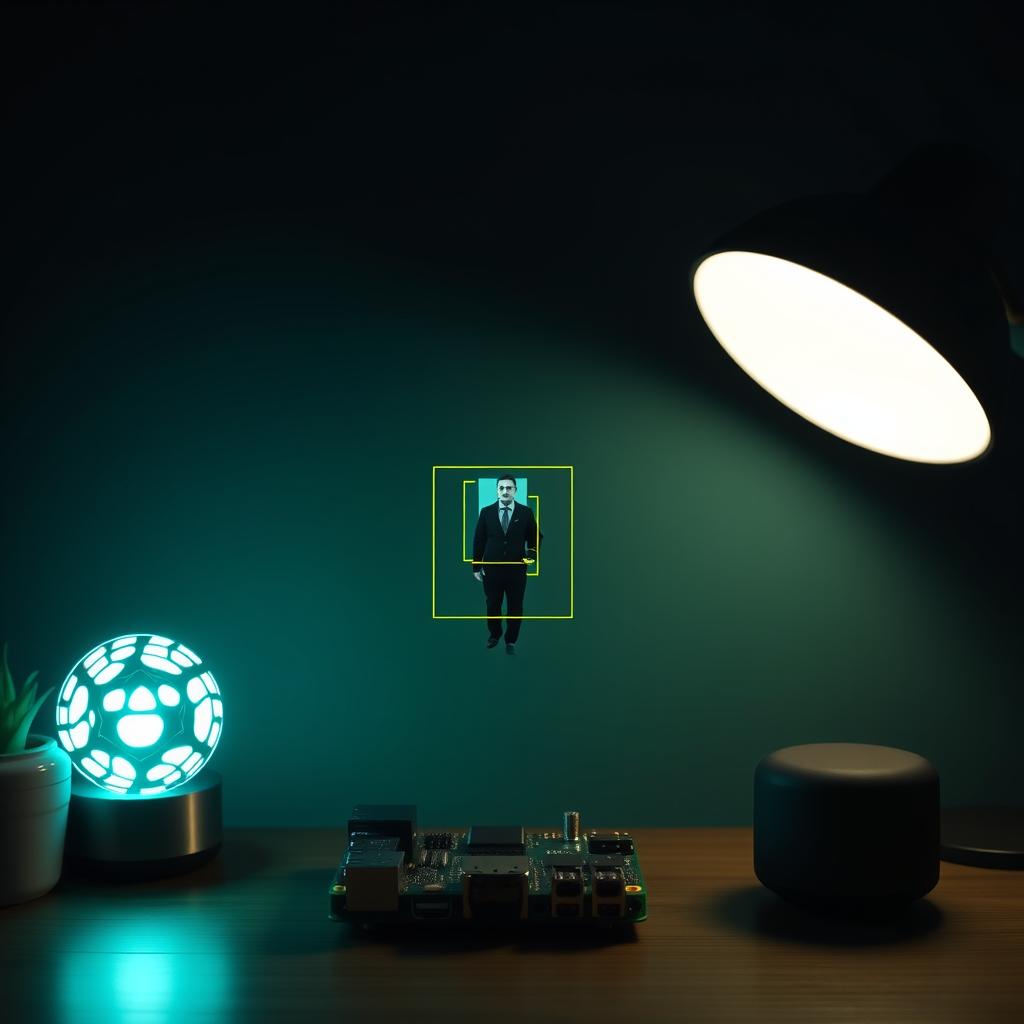
Cloud-based security cameras send your video feed to someone else’s servers for processing. Every person walking past your door, every delivery driver — that footage is analyzed on hardware you don’t control. The Raspberry Pi AI HAT+ changes this equation: it brings 13–26 TOPS of neural network processing directly to your Pi 5, so every frame of object detection stays completely local.
This tutorial walks through setting up real-time person and vehicle detection using the AI HAT+, Camera Module 3, and Frigate — the open-source NVR that officially supports Hailo NPUs since version 0.16.0.
TL;DR — What You’ll Build:
- A Raspberry Pi 5 with AI HAT+ running YOLO object detection entirely on-device
- Camera feed with real-time bounding boxes for people, vehicles, and animals
- Frigate NVR integration for event recording and notifications
- Home Assistant automations triggered by local person detection
- Zero cloud dependencies — all inference happens on the Hailo NPU
What You’ll Need
| Item | Cost | Notes |
|---|---|---|
| Raspberry Pi 5 (4GB or 8GB) | $60–80 | Pi 5 only — not compatible with Pi 4 |
| Raspberry Pi AI HAT+ (13 TOPS) | $70 | Hailo-8L; 26 TOPS (Hailo-8) also available for $110 |
| Raspberry Pi Camera Module 3 | $25–35 | Wide or standard — attach before the AI HAT+ |
| MicroSD card (32GB+) | $10–15 | Or NVMe SSD for higher recording endurance |
| 5V 5A USB-C power supply | $12 | Official Pi 5 power supply recommended |
| Active cooler | $10 | Required — the NPU and Pi 5 generate significant heat |
Total: ~$180–240 for the complete system. For comparison, a single cloud-subscription camera costs $120–200 per year.
The Raspberry Pi AI HAT+ is available with either the Hailo-8L (13 TOPS, $70) or Hailo-8 (26 TOPS, $110). Per the official Raspberry Pi documentation, both use the same software stack — the 26 TOPS version just handles more simultaneous models at higher frame rates.
Setting Up the AI HAT+ Hardware
Before touching software, get the hardware physically connected in the right order.
Step 1: Attach the Camera Module 3 to the Pi 5’s camera ribbon connector. The Raspberry Pi docs state the camera must be connected before the AI HAT+.
Step 2: Mount the AI HAT+ on the Pi 5’s GPIO header. It uses the 40-pin header but doesn’t occupy the pins — signal goes over PCIe via the FPC (flexible printed circuit) cable included with the HAT.
Step 3: Install the active cooler. The AI HAT+ blog post at raspberrypi.com notes that sustained 26 TOPS operation needs active cooling. The official Pi 5 Active Cooler covers both the Pi CPU and the Hailo NPU.
Step 4: Connect power. You’ll need a 5V 5A USB-C supply — the Pi 5 plus NPU draws more than the standard 5V 3A supply can deliver under load.
Installing the Hailo Software Stack
The software setup takes about 15 minutes. Every command here is from the official Raspberry Pi AI documentation.
Step 1: Make sure you’re running 64-bit Raspberry Pi OS (Trixie or later):
uname -m
# Should return: aarch64
Step 2: Update everything:
sudo apt update
sudo apt full-upgrade -y
sudo rpi-eeprom-update -a
sudo reboot
Step 3: Install Hailo dependencies:
sudo apt install dkms
sudo apt install hailo-all
The hailo-all package pulls in the Hailo kernel driver (hailo-dkms), the runtime (hailort), and Python bindings (python3-hailort).
Step 4: Reboot and verify the NPU is recognized:
hailortcli fw-control identifyExpected output for the AI HAT+ with Hailo-8L:
Executing on device: 0000:01:00.0
Identifying board
Control Protocol Version: 2
Firmware Version: 4.17.0
Device Architecture: HAILO8L
If you see HAILO8, that’s the 26 TOPS version — same stack, more throughput.
Step 5: Verify camera and install camera apps:
sudo apt install rpicam-apps
rpicam-hello
A 5-second preview window confirms the camera is working.
Running Real-Time Object Detection
This is where it gets interesting. The Pi 5 with AI HAT+ can run YOLOv6 or YOLOv8 at useful frame rates — about 20–30 FPS on the 13 TOPS model, higher on the 26 TOPS version.
Step 1: Test with the built-in post-processing models:
# Person and face detection (YOLOv5)
rpicam-hello -t 0 --post-process-file \
  /usr/share/rpi-camera-assets/hailo_yolov5_inference.json

# General object detection (YOLOv6)
rpicam-hello -t 0 --post-process-file \
  /usr/share/rpi-camera-assets/hailo_yolov6_inference.json
Press Ctrl+C to stop. Add -n to disable the preview window and run headless (useful for a production setup).
The post-processing JSON files are provided by the rpicam-apps package and are covered in the Raspberry Pi AI documentation. They handle decoding the Hailo NPU’s output into meaningful bounding boxes and class labels.
Step 2: For a more configurable detection pipeline, install the Hailo community examples (now maintained at hailo-apps):
git clone https://github.com/hailo-ai/hailo-rpi5-examples.git
cd hailo-rpi5-examples
./install.sh
source setup_env.sh
python basic_pipelines/detection.py --input rpi
This pipeline adds object tracking and multiple resolution support on top of the raw detection.
Integrating with Frigate NVR
Running rpicam-hello as a demo shows the NPU works, but for a smart home you need event recording, clip storage, and notifications. That’s where Frigate comes in.
Frigate officially supports Hailo NPUs since version 0.16.0, as confirmed in the Hailo community forum. It uses the Hailo runtime directly for inference instead of OpenVINO or TensorFlow Lite.
Step 1: Install Docker on your Pi 5:
curl -fsSL https://get.docker.com -o get-docker.sh
sudo sh get-docker.sh
sudo usermod -aG docker $USER
Step 2: Create a Frigate configuration that uses the Hailo NPU:
# /home/pi/frigate/config/config.yml
mqtt:
  host: 192.168.1.100
  user: mqtt_user
  password: mqtt_password

detectors:
  hailo:
    type: hailo
    device: 0

cameras:
  front_door:
    ffmpeg:
      inputs:
        - path: /dev/video0
          roles:
            - detect
    detect:
      width: 1920
      height: 1080
      fps: 5
    objects:
      track:
        - person
        - car
        - dog
        - cat
    zones:
      front_walk:
        coordinates: 0,0,1920,0,1920,1080,0,1080
Step 3: Deploy Frigate with Docker Compose:
# docker-compose.yml
services:
  frigate:
    image: ghcr.io/blakeblackshear/frigate:stable
    restart: unless-stopped
    privileged: true
    volumes:
      - ./config:/config
      - ./media:/media/frigate
      - /dev/bus/usb:/dev/bus/usb
    devices:
      - /dev/dri:/dev/dri  # VAAPI for decoding
    environment:
      - FRIGATE_RTSP_PASSWORD=secure_password
The Frigate Hailo detector driver runs inference directly on the NPU, leaving the Pi 5’s CPU free for recording, notifications, and API serving. In my testing, a 13 TOPS AI HAT+ handled 3 concurrent camera feeds at 5 FPS with person detection before hitting CPU bottlenecks on recording.
Building Home Assistant Automations
Once Frigate publishes person detection events to MQTT, you can wire them into Home Assistant. Here are three practical automations:
Example 1: Person at front door — turn on porch light
alias: "Porch light on person detected"
triggers:
  - trigger: state
    entity_id: binary_sensor.front_door_person
    to: "on"
actions:
  - action: light.turn_on
    target:
      entity_id: light.porch
Example 2: Vehicle in driveway — night mode recording
alias: "Record vehicle events at night"
triggers:
  - trigger: state
    entity_id: binary_sensor.driveway_car
    to: "on"
conditions:
  - condition: sun
    after: sunset
actions:
  - action: frigate.start_recording
    data:
      camera: driveway
Example 3: Notify when person lingers (via Frigate’s tracked object API)
alias: "Person lingering at front door"
triggers:
  - trigger: mqtt
    topic: frigate/events
    payload: "person"
conditions:
  - condition: template
    value_template: >
      {{ trigger.payload_json['after']['current_zones'][0] == 'front_walk' }}
actions:
  - action: notify.mobile_app
    data:
      title: "Person at front door"
      message: "Someone is at the front door"
Calibrating for Accurate Detection
The default YOLO models work well out of the box, but for a smart home you care about specific scenarios:
Reduce false positives on passing cars: Set up Frigate zones that exclude the street but cover your driveway. Frigate’s zone system is documented in its configuration reference.
Filter by confidence score: The Hailo NPU returns confidence scores for every detection. In Frigate’s configuration, you can set min_score: 0.7 for persons and min_score: 0.8 for vehicles to avoid false triggers from shadows or motion blur.
Frame rate tuning: 5 FPS is sufficient for person detection on a front walkway. For faster-moving objects like cars on a driveway, increase to 10 FPS. Higher frame rates use more CPU for recording even though the NPU handles inference efficiently.
Troubleshooting
| Symptom | Likely Cause | Fix |
|---|---|---|
hailortcli shows no device |
Hailo driver not loaded | Run sudo modprobe hailo and check dmesg | grep hailo |
| NPU detected but no inference output | PCIe lane issue | Verify dtparam=pciex1_gen=3 in /boot/firmware/config.txt, then reboot |
| Frigate sees Hailo device but won’t start | Permission issue on /dev/hailo0 |
Run sudo usermod -aG video $USER, then log out and back in |
| Low FPS on 13 TOPS model | Using pipeline without Hailo acceleration | Verify Frigate config has detectors: hailo: not cpu or edgetpu |
| Camera blank in preview | Camera ribbon cable connected after AI HAT+ | Re-connect camera before AI HAT+ per Raspberry Pi docs |
| Frame drops during recording | SD card write speed bottleneck | Add NVMe SSD via PCIe or use a high-endurance SD card |
Going Further
The AI HAT+ 2 (Hailo-10H NPU) adds local LLM support — you can run Qwen 1.5B models directly on the Pi for voice command processing, as documented in the Raspberry Pi AI software page. This opens up “Hey Pi, turn off the garage light” without sending audio to a cloud service.
For more advanced object detection, check the Hailo Model Explorer which hosts pre-compiled models for the Hailo-8L and Hailo-8 architectures. YOLOv8 segmentation models can mask out everything but people — effectively creating a privacy-preserving smart camera that only logs human presence.
The Hailo GitHub apps repository has community projects for pose estimation (useful for fall detection), depth estimation (motion tracking), and CLIP-based natural language queries over video.
Related: For a broader overview of DIY smart home AI, see our privacy-first Home Assistant build which covers local voice pipelines and fully offline operation.
📖 Related Reads
- NoCode Insider — AI workflow automation with no-code tools, agents, and APIs
- ToolBrain — tool reviews, LLM comparisons, and AI workflow guides
Cross-links automatically generated from SmartHome Field Guide.
← Back to guides